







FAQ
FAQ
- FANS/FIXTURES
- ACCESSORIES/PARTS
- TROUBLESHOOTING
- SALES
- GENERAL
- MATTER-ENABLED SMART FANS: TROUBLESHOOTING FAQs
+- How do I search for a specific fan size?
We offer a variety of fan sizes from 26” to 110”. To search for 72 inch fans for example, please input “72 ceiling fan” in the Product Search box.
+- Can you send me a catalog?
For your convenience all Minka Group® products are shown on our website. All current CATALOGS are also featured on our website. If you would like a printed catalog, please contact a distributor nearest you.
+- How much does my fixture weigh?
Fixture weight can be found in the product specification sheets. These are available on our website by searching the product model number on our PRODUCT SPECIFICATION SEARCH. Weight information will be found in the Shipping section.
If the product specification sheet is not available on our website, you may fill out the SUBMIT A QUESTION form with the item number and description and we will do our best to provide you with the fixture weight.
+- I need help selecting a chandelier, what do I do?
All Minka Group® distributors are professionally trained to accommodate your needs.
Please use our Dealer Locator to find a dealer near your area.
+- Can I order fixtures in a custom size?
+- My fixture says I need to use a 60 watt bulb. Can I use a higher wattage?
+- Can I use a dimmer with my fixture?
Most Minka Group® products are dimmable, please check with your dealer for proper application and selection of compatible dimmer switch.
+- I have a sloped ceiling. Will the fan hang straight?
Most of our Minka Aire® ceiling fans are equipped with a universal hanging system made to hang from a vaulted ceiling up to a 18 degree pitch. In addition we also sell a slope hanging system kit for up to a 45 degree pitch.
These kits are available for purchase at your local distributor.
+- I am missing parts. How do I replace them?
Return to the distributor where you purchased the item. All of our distributors are able to provide you with missing parts or they can special order them for you.
+- Do you make bath accessories to match your bathroom lights?
+- I need instructions for my electrician to install my fixture.
Instruction manuals are included in the box for each item.
Instruction manuals may also be found by searching the product model number on our PRODUCT MANUAL SEARCH
If the Instruction manual you need is not available on our website, you may fill out the SUBMIT A QUESTION form with the item number and description and we will do our best to provide you with the instructions.
+- Can I order a product in a different finish than what is shown?
+- What if I can’t find an item on the website?
Please contact an authorized Minka Group® distributor nearest to you with the item number and description or you can fill out the SUBMIT A QUESTION form with the item number and description. We will do our best to assist you.
+- How do I purchase a replacement shade/glass?
+- What do I do if I need more chain on my chandelier?
+- What is the measurement of the back plate on an outdoor fixture found in our catalog?
Measurement information can be found in the product specification sheets. These are available on our website by searching the product model number on our PRODUCT SPECIFICATION SEARCH. The back plate measurement will be found in the Measurements section.
If the product specification sheet you need is not available on our website, you may fill out the SUBMIT A QUESTION form with the item number and description and we will do our best to provide you with the measurements.
+- How do I submit a Warranty Registration for my Minka Aire® ceiling fan?
Click here to complete your Warranty Registration.
+- How do I purchase Light Kits?
Please contact an authorized Minka Group® dealer. To find your nearest dealer use our Dealer Locator
+- My fan sounds noisy.
Please allow a 24-hour "break in" period. Most noises associated with a new fan will go away during this time.
1. Make sure the screws that attach the fan blade holder to the motor hub are tight.
2. Make sure outlet box is secured to building structure, if necessary use wood screws provided to further secure the outlet box to the joist.
3. Make sure the hanger bracket is secure to the outlet box and screws are tight.
https://www.minkagroup.net/images/uploads/pdf/Receiver%20Bypass%20For%20Light.png+- Why does my fan and light keep turning on by itself?
If you are having frequency interference issues with your Minka Aire fan, please review the troubleshooting section of your instruction manual. These are available on our website by searching the product model number on our PRODUCT SPECIFICATION SEARCH.
If this fails to correct the issue, you may fill out the SUBMIT A QUESTION form with the item number and description of your issue and we will do our best to provide with a response in a timely manner.
+- How do I open an account?
If you are an authorized dealer and have not registered with us for access to this portion of our website, please contact us via the SUBMIT A QUESTION form. Thank you.
+- I live outside of the United States. Who can I contact to purchase your products?
We currently manufacture product designed for the United States and its electrical requirements. Should your country comply with US standards, please forward requests to our sales team and we can direct you accordingly. Should your country not comply with US standards, we could only supply product if the specific job or need met minimum quantity requirements.
+- Where do I submit my warranty?
Save time and postage! You may complete your Minka Aire® ceiling fan Warranty Registration online. Get Started
+- Product Issues
If you have any issues with the product, please reach out to your DEALER for immediate assistance. You may also submit general questions via the SUBMIT A QUESTION form and we will do our best to respond to you in a timely manner. Thank you.
+- Do you sell direct to the public?
We are currently not set up to direct sell to the public. Our distributors are trained and can assist you with questions regarding the purchase of our product. To find your nearest Minka Group® dealer, please use our DEALER LOCATOR
+- Basic Setup Requirements
• Complete fan installation according to instructions.
• Confirm fan function using handheld remote control.
• 2.4 GHz Wi Fi network is available.
• Bluetooth enabled phone or tablet.
• Matter Wi-Fi-compatible hub installed and configured with necessary apps on phone or tablet.
• Smart home app and firmware updates on all devices.
• Phone or tablet and hub must be on the same wi-fi network.
+- Supported Mobile Devices
Apple Devices
• iPhone with iOS 16.1 or later
• Apple Home app installed
• Connected to 2.4gHz Wi-Fi
• Bluetooth enabled
Recommended: matter-compatible Apple HomePod or Apple TV acting as a Apple Home hub.
Android Devices
• Android 8.1 or later
• Current Google Play Services
Note: Android devices require app installation based on compatible Matter hub within their chosen ecosystem (Google, Samsung SmartThings, Alexa)
+- Activate Pairing Mode
1. Install and turn power on to the fan.
2. Verify correct fan operation from remote.
3. Open desired ecosystem app on your phone or tablet that is paired with your hub.
4. Navigate to add a device to the ecosystem.
5. Press and hold REVERSE button on the remote control to enter pairing mode on the fan. Once in pairing mode, the fan receiver will beep intermittently for 2 minutes until pairing is complete.
6. Follow prompts on your device to continue pairing.
7. When prompted, scan Matter QR code or manually enter the device code.
8. Complete fan set up in your smart home ecosystem and confirm operation.
+- Platform-Specific Pairing
Apple Home, Alexa, Google Home, and SmartThings each support Matter onboarding through Add Device and QR code scanning workflows.
+- How do I add the fan to Apple Home?
1. Open Apple Home.
2. Tap Add Accessory.
3. Scan the Matter Code.
4. Follow prompts to complete setup.
5. Assign the fan to a room.
6. Verify fan and light controls function.
Requirements: iPhone, Home app on phone or tablet, Bluetooth, 2.4gHz Wi-Fi, Matter compatible Hub such as HomePod or Apple TV.
+- How do I add the fan to Amazon Alexa?
1. Open Amazon Alexa.
2. Tap Add Device.
3. Choose Matter Device.
4. Scan the Matter QR Code.
5. Complete setup instructions.
6. Verify fan and light controls function.
Requirements: Alexa app on phone or tablet, Bluetooth, 2.4gHZ Wi-Fi, Matter-capable Amazon Hub device & associated Amazon account.
+- Alexa FAQ
Why do I see multiple devices?
This behavior is normal
Alexa may display:
• Matter Primary Device
o Fan Control Entity
o Light Control Entity
This allows independent control of fan and light functions in the Alexa ecosystem
+- How do I add the fan to Google Home?
1. Open Google Home.
2. Select Add Device.
3. Choose Matter Device.
4. Scan the Matter QR code.
5. Follow setup prompts.
6. Verify fan and light controls function.
Requirements: Google Home app on phone or tablet, Bluetooth, 2.4gHZ Wi-Fi, Matter-capable Google Hub device & associated google account.
+- Google Home FAQ
Why can't I reverse the fan in Google Home?
Google Home currently does not display a fan reverse control function.
This is a current platform limitation within Google Home and not a limitation of the Minka-Aire fan itself.
The handheld remote can still be used to change fan direction.
+- How do I add the fan to Samsung SmartThings?
Requirements: SmartThings app on phone or tablet, Samsung account and Matter-capable hub.
Steps: Add Device → Scan QR Code → Complete onboarding.
1. Open SmartThings.
2. Select Add Device.
3. Scan the Matter QR code.
4. Verify connection to your SmartThings Hub.
5. Complete device configuration.
6. Verify fan and light controls function.
Requirements: Samsung SmartThings app on phone or tablet, Bluetooth, 2.4gHZ Wi-Fi, Matter-capable Samsung SmartThings Hub device & associated Samsung account.
+- Multi Ecosystem or Device Sharing
Can I use the fan with more than one smarthome ecosystem?
Yes.
Matter supports Multi-Admin functionality, allowing the same device to be controlled by multiple ecosystems.
1. Pair fan to first ecosystem.
2. Open device settings in primary ecosystem.
3. Generate Matter sharing code via the app.
4. Open second ecosystem.
5. Select Add Matter Device.
6. Scan sharing code.
7. Verify control from both ecosystems.
Example: Apple Home → Alexa or Alexa → Google Home.
NOTE: Do not scan the QR set-up code directly to add to a second ecosystem, this will override the first ecosystem, not be in addition to the first ecosystem
+- Why Is Bluetooth Required?
Bluetooth is only used during setup and sharing.
Bluetooth is used for:
• Discovering the Matter device
• Transferring Wi-Fi credentials
• Secure authentication during pairing
• Cross-platform device sharing
Bluetooth is NOT used for:
• Daily fan operation
• Fan speed control
• Light control
• Remote access
Once pairing is complete, the fan communicates over Wi-Fi.
+- Where Is My Matter QR Code?
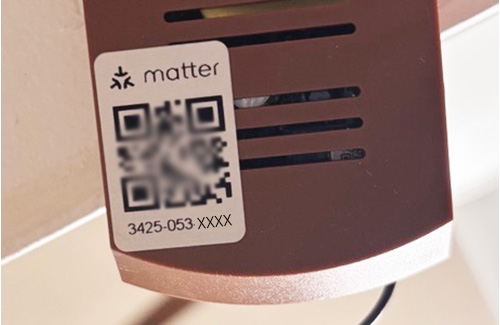
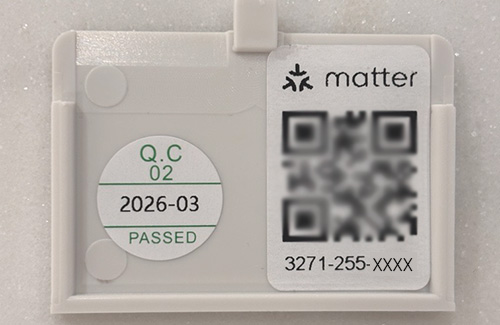
The unique Matter QR code is provided in 3 locations:
• Underside of the battery cover of the handheld remote
• Fan receiver
• Quick-Start Pairing Guide, shipped with the fan
Each receiver has a unique Matter code. QR codes cannot be exchanged between products
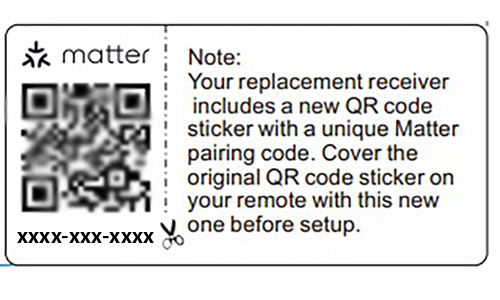
Note: For replacement receivers, an additional QR code sticker will be supplied so customers can replace the code on their handheld remote and/or user guide for reference or re-pairing.
+- Can I scan the original Matter QR code again?
No.
The original QR code is intended for the first commissioning process only.
Once paired:
1. Open the first ecosystem app.
2. Select Share Device.
3. Generate a new Matter setup code.
4. Use the newly generated QR code for additional platforms.
Do not reuse the factory QR code for secondary setup. Only use the QR code again if the original system is un-paired, or the fan is reset.
+- How many platforms can be connected?
Most Matter devices support up to 5 Matter Fabrics (controllers/ecosystems).
+- Troubleshooting
Pairing Failed
Possible Causes
• Bluetooth disabled
• Hub unavailable
• Fan not in pairing mode
• Wrong Wi-Fi network
• 5 GHz network only
• QR code scanned after commissioning expired
Resolution
1. Confirm Bluetooth is enabled.
2. Verify 2.4 GHz Wi-Fi availability.
3. Verify Matter hub is online.
4. Re-enter pairing mode using the remote.
5. Retry setup.
My Android Phone Cannot Find the Fan
Check:
• Compatible Matter Hub is installed
• Google Nest Hub, Echo, or SmartThings Hub is online
• Bluetooth is enabled
• Fan is in pairing mode
Matter pairing on Android requires a compatible ecosystem hub.
Fan and Light Controls Are Out of Sync
The app and handheld remote normally synchronize device status.
If synchronization appears delayed:
1. Wait several seconds.
2. Verify Wi-Fi signal strength.
3. Verify hub connectivity.
Who Wins When Multiple Users Control the Fan?
If multiple users issue commands simultaneously:
• The first command received is executed.
• The fan will update its status and synchronize across connected controllers.
This behavior is normal.
+- Known Platform Limitations
| Platform | Limitation |
|---|---|
| Google Home | Fan reverse control not currently displayed |
| Matter Ecosystems | Original QR code can only be used for first commissioning |
| Matter Shared Devices | Additional ecosystems require a newly generated setup code |
| Matter Fabrics | Typically limited to 5 connected controllers |
+- Support Information Checklist
When contacting support, please provide:
• Fan model number
• Receiver model number
• Mobile device model
• Mobile OS version
• Smart home platform used
• Hub model
• Description of issue
• Photos/screenshots of error messages
This information will help expedite troubleshooting and resolution.
+- Multi-Ecosystem Pairing Process
Example #1: Apple Home → Amazon Alexa
Step 1: Pair Fan to Apple Home
1. Open Apple Home.
2. Add Accessory.
3. Scan the factory Matter QR code.
4. Complete setup.
Step 2: Generate Sharing Code
1. Open Apple Home.
2. Select the fan.
3. Tap Settings.
4. Scroll to Turn On Pairing Mode or Pair with Another App.
5. Apple generates a new Matter setup code.
Step 3: Add to Alexa
1. Open Alexa App.
2. Select Add Device.
3. Choose Matter Device.
4. Scan the Apple-generated code.
5. Complete onboarding.
Result
The same fan is now controllable through:
•Apple Home
•Alexa
Example #2: Alexa → Google Home
In Alexa
1. Open fan settings.
2. Select Matter Sharing.
3. Generate new setup code.
In Google Home
1. Tap Add.
2. Matter-enabled device.
3. Scan generated code.
4. Complete pairing.
Result
The fan appears in:
• Alexa
• Google Home
+- General FAQs
Can I use the original QR code for every platform?
No.
The factory QR code is intended for the initial commissioning process only. Additional ecosystems should be added using a newly generated sharing code from an ecosystem that already controls the fan.
Do I need to reset the fan before adding another platform?
No.
Matter Multi-Admin is specifically designed to avoid factory resets when adding compatible ecosystems.
What happens if two platforms send commands at the same time?
The fan executes the first command it receives.
Device status then synchronizes across all connected Matter controllers.
Example:
• Alexa turns fan ON
• Apple Home immediately shows ON status
• Google Home updates to ON status
How do I remove one platform but keep the others?
Remove the fan from the specific ecosystem where you no longer want access.
The fan will remain available in the remaining ecosystems unless a factory reset is performed.
+- Factory Reset
When should I factory reset my fan?
Factory reset should only be used when troubleshooting has failed, when transferring ownership of the fan, or when removing the fan from all smart home ecosystems.
What happens during a factory reset?
A factory reset removes all Matter ecosystem connections, Wi-Fi credentials, and Multi-Admin relationships.
The fan will need to be paired again using its original Matter setup code.
Will I lose my Multi-Admin connections?
Yes. A factory reset removes all connected ecosystems, including Apple Home, Alexa, Google Home, and SmartThings.
Do I need to factory reset the fan to add another ecosystem?
No. Use Matter Multi-Admin sharing instead. Generate a new Matter onboarding code from an ecosystem that already controls the fan and use that code to add the fan to another platform.
How do execute a factory reset
1. Turn off power to the fan
2. Wait 10 seconds or more
3. Restore power to the fan
4. Press and hold the ‘reverse’ on the handheld remote to clear the Matter configurations
5. Use the original Matter QR code to pair the fan